
Adding a New Page to My Website
Your website is a living, breathing part of your organization’s identity. It should grow and evolve right alongside your business. One of the easiest ways to keep your site fresh is by regularly updating your content and adding new pages as your organization expands or shifts focus.
This article will walk you through how to add a brand-new page to your website using Editor.
Step 1: Log Into Editor
Once you log into Editor, you’ll land on the Pages tab. This is your Page Manager—the control center for your site’s structure.
We have a full article dedicated to the Page Manager if you’d like a deeper dive into how it works. (Learn more here).
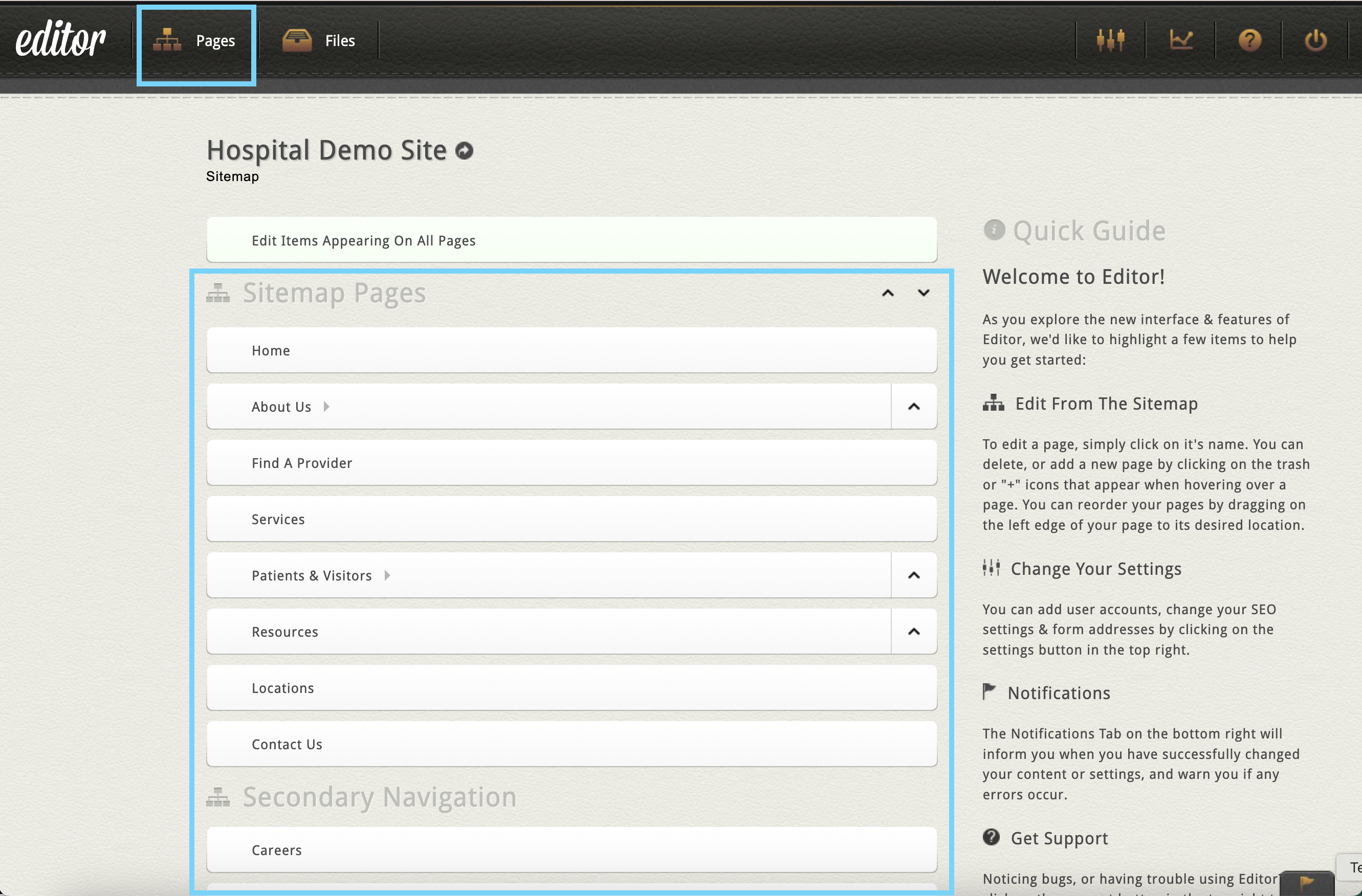
Step 2: Choose Where the Page Will Live
Locate the section of your site where you want your new page to appear. Every website includes the following sections:
-
Sitemap Pages – This is your main menu. Pages created here will appear in your site navigation.
-
Marketing Landing Pages - Pages located here are part of your website, but do not show up in your main navigation and must be linked to directly. Keep in mind, by default, pages in this section are set to "no index", meaning the search engines will not see them as part of your website sitemap. If you want the page to be read by search engines and other technology, you can turn "no index" off in the Page Settings section.
Some websites may have additional sections in their pages menu, unique to your site's design and/or features. These may include:
If you're interested in adding a new section to your website for added control or flexibility, reach out to clientservices@cybernautic.com to discuss your options.
Step 3: Add the New Page
Your Main Navigation Might Be Locked - Here's Why:
You may notice that the ability to add pages to the root (first) level of your main navigation (Sitemap Pages) is locked down. Your site’s top-level navigation is carefully designed to fit your layout, both visually and structurally. Adding new items here can break menus, overflow layouts on smaller screens, or create confusing user experiences.
Keeping it protected is intentional, but you still several options for adding new pages to your top level menu:
- Reach out to our support team. We’ll add the page on your behalf to ensure it fits seamlessly within your site’s design and navigation framework.
- Create your page in the Marketing Landing Pages section and let us know when you're ready to move it to the main menu. We'll coordinate the details and take care of that on your behalf.
- If you're confident in managing your primary navigation items on your own, let us know and we can remove the restriction entirely to give you the ability to manage everything on your own.
You can still add subpages or marketing landing pages anytime on your own — these don’t impact your site’s main navigation layout.
Add a subpage or marketing landing page:
Note: Your new page will be created as a draft page, so it will not be live on your website until you publish it.

Step 4: Arrange the Page
When you first create your new page, you will be taken to the page's edit screen automatically. Click the "Pages" tab in the top Editor navigation bar to return to your list of pages and see your new page's placement in the sitemap.
From here you can:
-
Drag and drop the page to change its order. Move your cursor to the left of the page tab until you see the up and down arrow cursor. Click and hold, then move your mouse up and down to drag the tab into a different placement in the menu.
-
You can also move your mouse to the right to nest the page under another page. Nesting pages is typically limited to 3 levels deep on most websites, but if you need additional levels don't hesitate to reach out.

Step 5: Edit and Publish
Click back into your new page to start adding content. When you’re ready, don’t forget to publish your changes so they’re live on your website.
Tips & Best Practices
-
Be intentional about where you place new pages so your navigation stays clean and easy to use.
-
Use short, clear page titles that will make sense in your site menu.
-
If you’re adding a page that won’t be part of your main menu, consider linking to it from another page or your footer.
Related Articles
-
Managing Your Website Pages (Page Manager Overview)
-
How to Clone a Page
-
How to use Page Containers
-