
Inserting a Video or Third-Party Code
Editor makes it easy to embed rich content like videos and third-party tools directly into your page using the dynamic text area toolbar. This article covers how to insert both:
-
A video from YouTube or Vimeo
-
A third-party embed code (such as a form, scheduling widget, or interactive tool)
Inserting a Video
To add a YouTube or Vimeo video to your content:
-
Place your cursor where you want the video to appear.
-
In the toolbar, go to Insert > Video.
-
Paste your video URL or embed code into the pop-up window.
-
The system will automatically format it as a proper embed.
-
-
Before inserting, you can:
-
Adjust the aspect ratio
-
Choose the width (as a % of the text area)
-
Set the alignment (left, center, or right)
-
-
Click the orange checkmark to insert.
Once inserted:
-
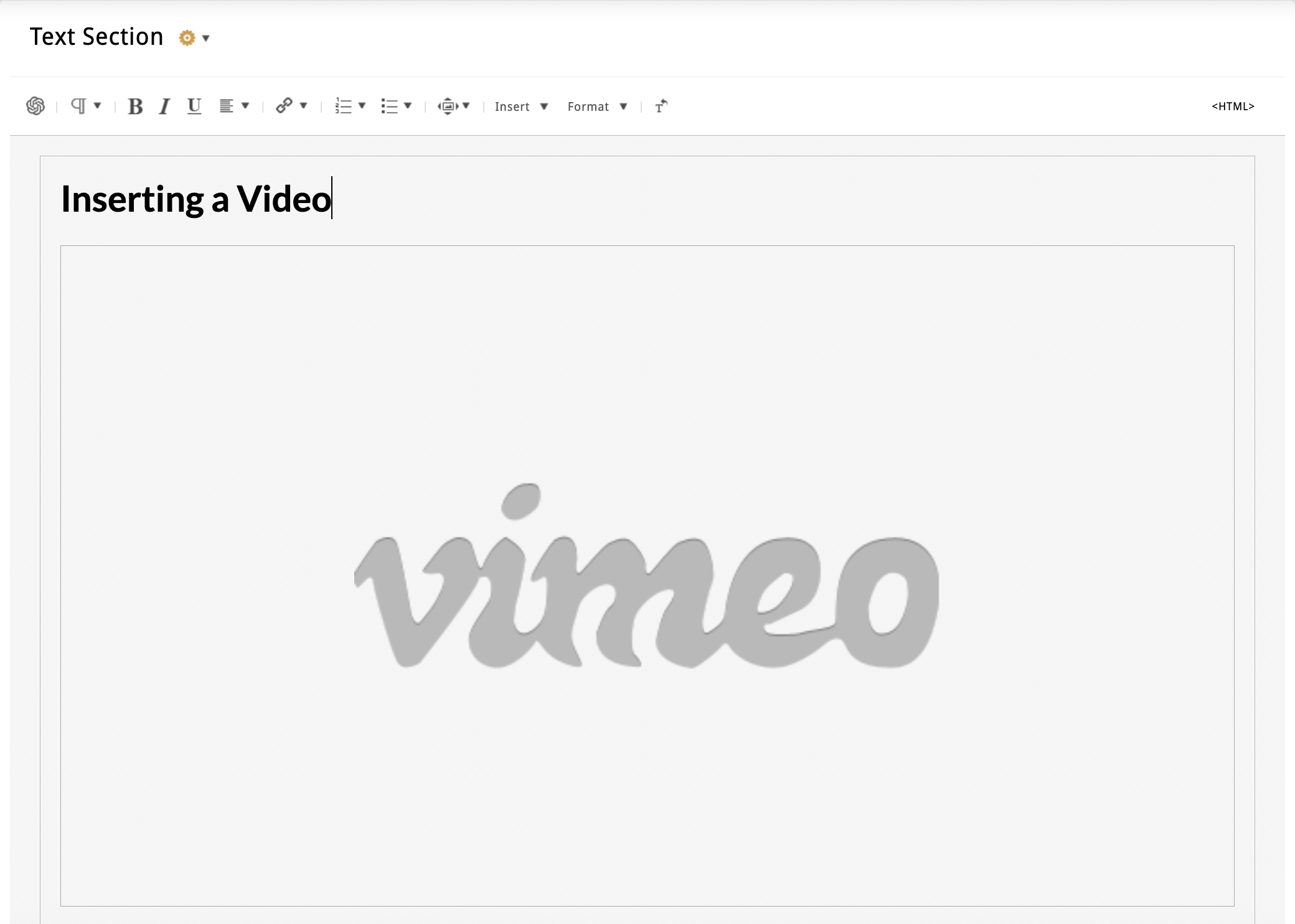
You’ll see a gray placeholder box with a YouTube or Vimeo logo.
-
Hover to reveal the crosshairs icon and drag the video to reposition it.
-
Click the video to open the video toolbar:
-
Add a paragraph break above or below.
-
Edit the embed code or URL.
-
Update the aspect ratio, width, or alignment.
-
To remove the video, hover over it, click the crosshairs to select it, then press Delete or Backspace.
Inserting a Third-Party Embed Code
This tool is perfect for embedding widgets like:
-
Email signup forms (e.g., Constant Contact, Mailchimp)
-
Custom forms from JotForm or HubSpot
-
Interactive tools like flipbooks, maps, or calculators
To embed third-party code:
-
Place your cursor where the content should appear.
-
Go to Insert > Embed Code (hover to open the input field).
-
Paste your JavaScript or iframe code from the third-party provider.
-
Click the orange checkmark to insert.
Once inserted:
-
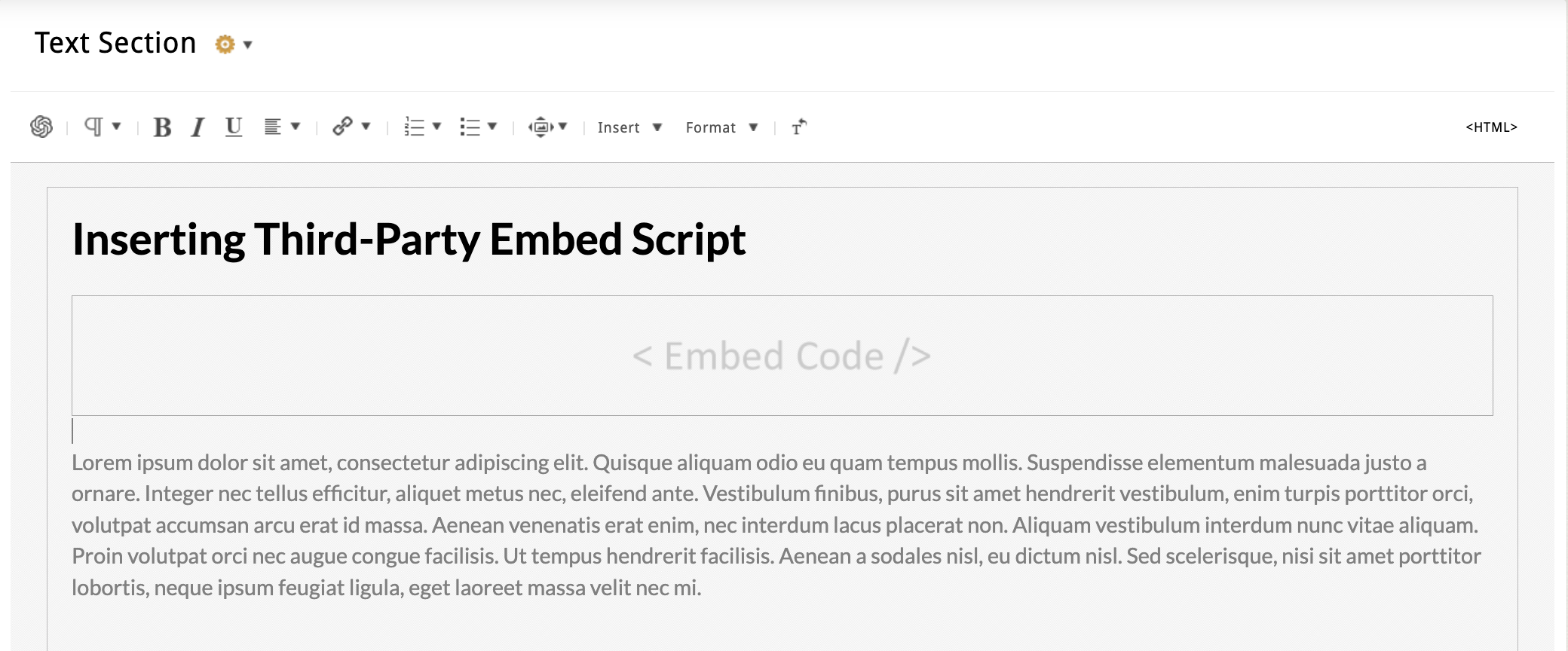
A gray box will appear with a light gray label that says “Embed Code.”
-
Click the box to:
-
Add a paragraph break
-
Edit the code via pop-up window
-
Note: Unlike videos, third-party embeds do not include tools to adjust aspect ratio, width, or alignment—those settings are typically controlled by the third-party code itself.
To remove the embed, hover, click the crosshairs to select it, and press Delete or Backspace.
Quick Tips
-
Always test your embed to make sure it displays properly across devices.
-
Be cautious with embed code from unknown sources—malformed code can affect page performance.