
Social Icons
How to Ad, Edit, or Remove Social Media Icons on Your Website
Here’s how to find and manage them:
Where to Edit Your Social Media Icons
To get started, head to the "Edit Items Appearing on All Pages" tab at the top of your Pages list in Editor.
Locating the Social Media Block
The exact location of your social media icons will depend on your site’s layout, but they’ll typically be found in one of two places:
-
In the first block on the page, with a "Click Here to Edit" link

OR -
In their own block on the page, where you can manage icons directly in a flex grid
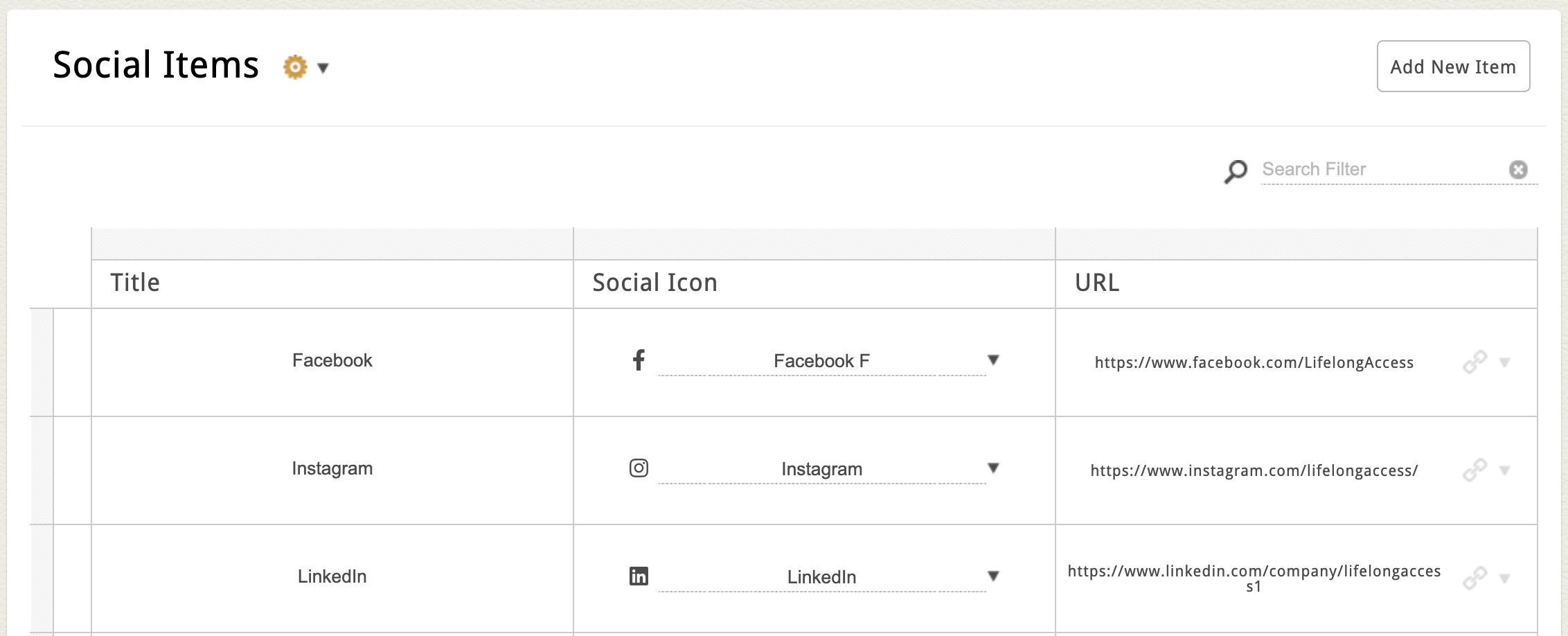
Either way, you’ll be able to see a preview of the icons currently on your site.
How to Add or Edit Social Media Icons
If your site uses a "Click Here to Edit" link:
- Click that link to open the editing screen.
If your site uses a flex grid block:
- Scroll down to that section and make your updates right there on the page.
To add a new icon:
-
Click the "Add" button to create a set of new blank icon fields.
-
Choose an icon from the dropdown list (this pulls from your site’s social icon library).
-
Enter a title (this is mainly for SEO and accessibility purposes—it won’t usually display on your website).
-
Paste the full URL to your social media profile (don't forget to include https:// in the link)
Once you’re done, click "Save and Return" to save your changes.
How to Sort the Order of Your Icons
To rearrange your icons:
-
Move your mouse to the left side of the icon's row until your cursor changes to an up/down arrow.
-
Click and drag the icon up or down to reorder.
A note about saving changes:
- If you’re editing inside the flex grid, your new order will save automatically.
- If you’re using the "Click Here to Edit" screen, be sure to click "Save and Return" when you’re done.
How to Delete an Icon
To remove an icon:
-
Hover over the icon and click the trash can icon.
Need an Icon That’s Not Available?
If you don’t see the social platform you need in the icon dropdown, your site may be using an older version of our icon library.
While we do keep the library updated in Editor, we don’t automatically apply these updates to your site. That's because icon codes sometimes change between versions, and we don't want to accidentally break your existing icons.
If you’d like the latest icon set connected, just contact our team and we’ll help get it updated. We’ll also do a quick review of your site afterward to make sure everything looks right.